

In the UK, bank holidays can be a bit of a chore to keep track of:
- There are the standard date based events (Christmas Day);
- We then have substitute days if date based events coincide with a weekend;
- Easter keeps moving, and then we have first and last Monday in May; and
- Finally, additional days for key state events such as coronations and state funerals.
All of this means that anything that requires business day logic, whether in a spreadsheet or a TMS, needs a maintained list of bank holidays to be able to function — even if you can cleverly calculate Easter, you can’t forecast a coronation!
gov.uk to the rescue
Fortunately, the UK government has developed a digital strategy and has anticipated this issue. First, there is a basic website that lists upcoming bank holidays.
Importantly, from an automation point of view, there is also a documented API. The API is so straightforward, we can use with a web browser or directly in Excel.
In fact, the web address (endpoint) for the API is just:
https://www.gov.uk/bank-holidays.jsonOpening this in a modern browser like Microsoft Edge shows us the data:
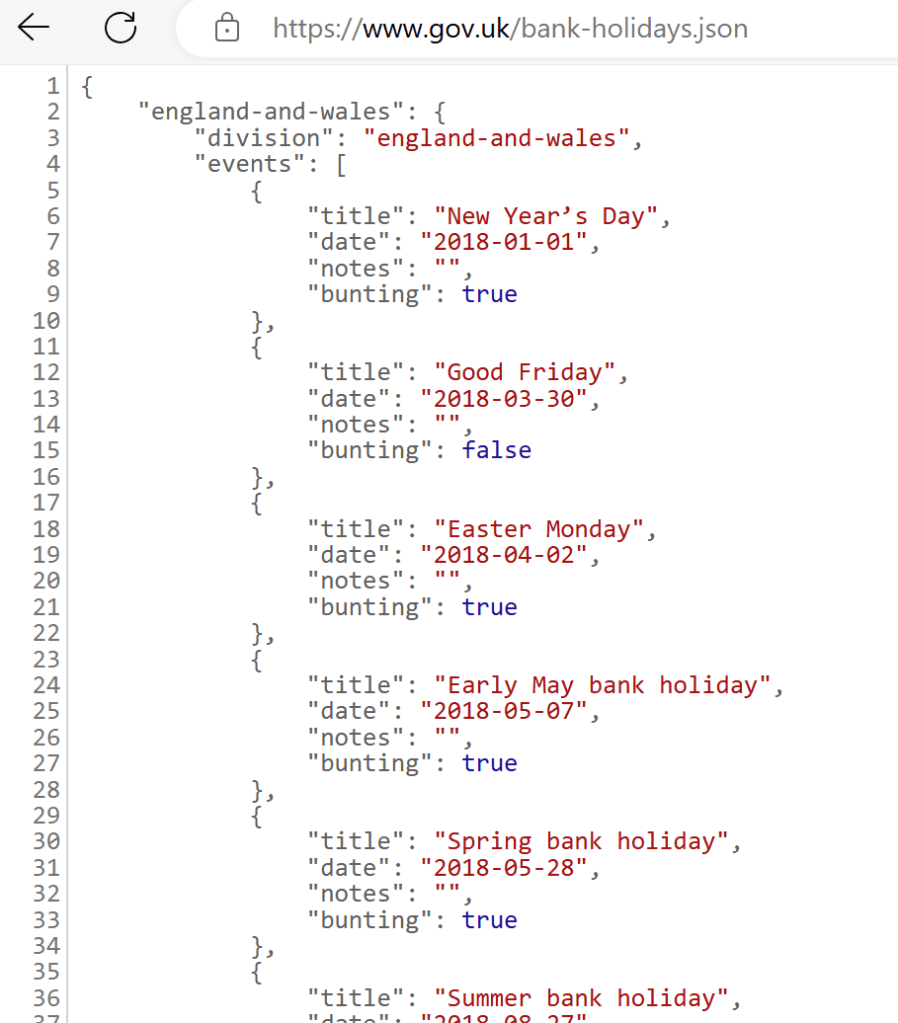
This is JSON data and is usually pretty easy to understand – the most important thing is that Excel can read it in directly.
Data handling in Excel
The starting point is the Data tab in Excel. We want the From Web option for this job:
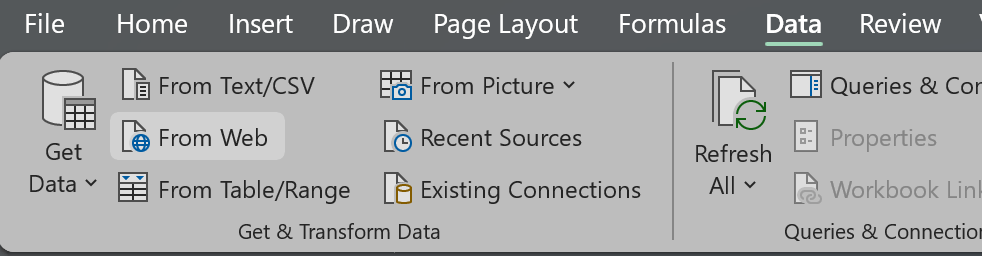
Choosing this option gives us box, into which we can input the API endpoint:
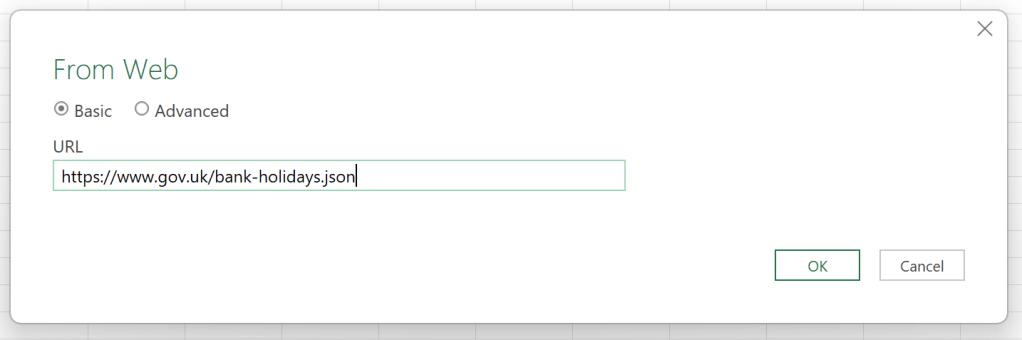
A quick click on “OK” and we’re up and running in PowerQuery:
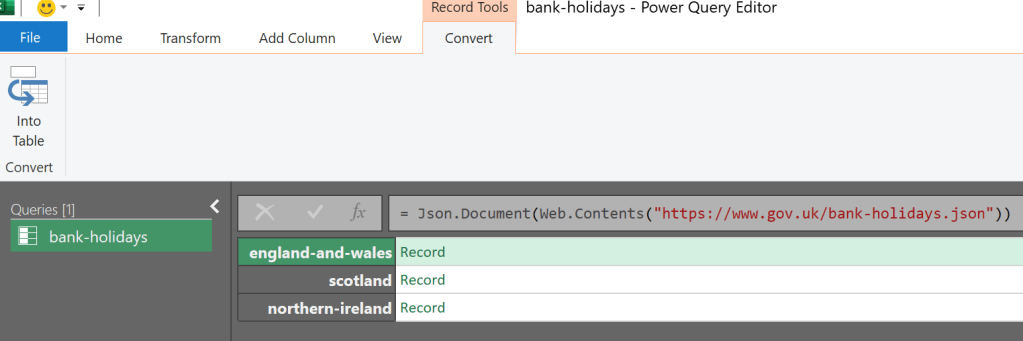
Looking at the formula bar, we can see PowerQuery has automatically recognised the file as a JSON document. However, we don’t yet have usable data — this is because the JSON data is hierarchical, and not yet in a table format.

Clicking the “Into Table” button takes us a step further, and then above the value column, click on the “Expand column” button.
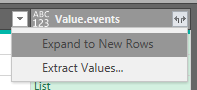
Click Ok on the expand columns dialogue box and we’ll see two new columns Value.division and Value.events. Hit the Expand button on the Value.events and this time we get a further menu — from which we pick “Expand to New Rows”
This should now leave you with a long table with the word “Record” in the events column. One final click on the “Expand” button will reveal the data we’re looking for:
Tidying up
At this point, we have some clear data that we could just load in Excel. However, there’s quite a bit of duplication between the England & Wales, Scotland and Northern Ireland datasets. It makes sense to use the filter function to remove the data that isn’t relevant to you:
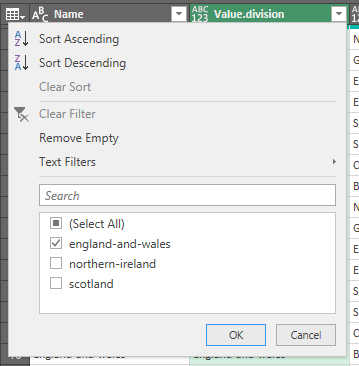
Having done that, you can now safely remove the Name and division columns. If you feel so inclined, you can also rename any of the columns to fit your use case.
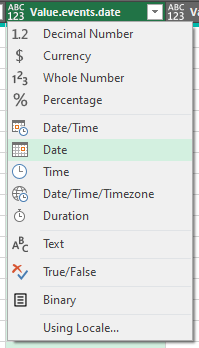
It is also important to set the correct data type for each column — if you don’t do this, Excel will not understand dates correctly! Do this by hitting the ABC123 button at the top of each column:
Close and Load

At this point, we’re done with PowerQuery and all that remains to do “Close & Load” into Excel.
Bunting
We haven’t quite figured out how to put the bunting field to good use in a treasury context, but it’s oddly comforting to know that someone in the UK government deemed it important enough to share in an API.
What next?
Now we have the PowerQuery rules established in an Excel file, it is very easy to keep the data up to date — simply hit “Refresh” on the Data tab and it will get the very latest data from gov.uk.
We can also use the same technique on any other platform that needs this data: PowerBI, TMS or a data warehouse calendar dimension table.
More gov.uk data
There is a wealth of data available on gov.uk; bank holidays are just the start. For example, legal entity information from Companies House is also available – although you do need register for that one.
 The Digital Treasurer